Use the same Companion script on mobile or desktop.
EmuControl Companion
Install the script once, connect your Torn key, and use shared war calls, assistance pings, BSP estimates, chain alerts, and faction announcements directly inside Torn.
Your faction sees coordinated activity within seconds.
No separate window is required for everyday use.
1
Get started
Install the Companion
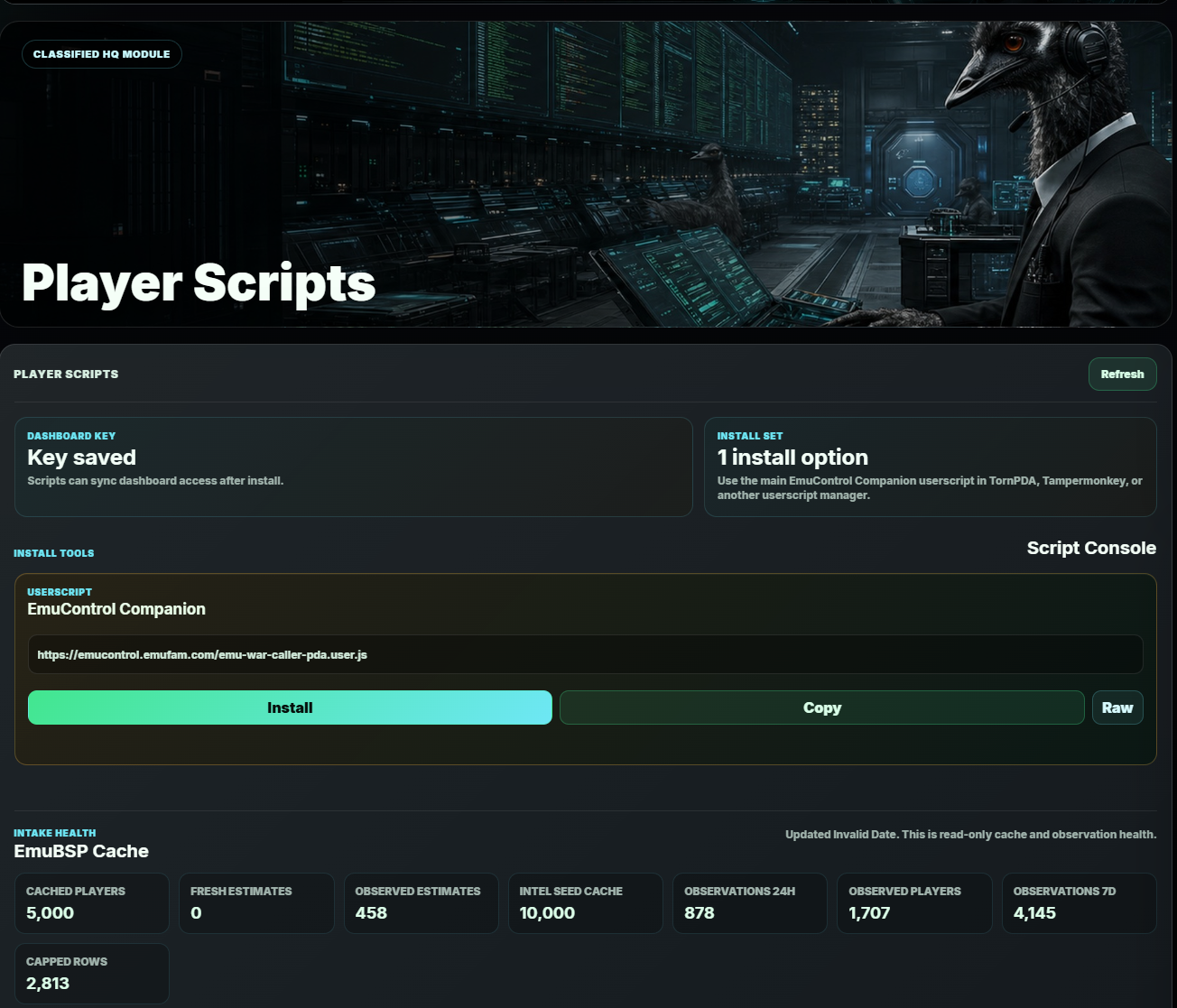
Open Player Scripts from the EmuControl dashboard and use the main EmuControl Companion install option.
- Open Player Scripts on the EmuControl dashboard.
- Press Install under EmuControl Companion.
- Approve the script in TornPDA, Tampermonkey, or your chosen userscript manager.
- If it is already installed, the userscript manager may show Reinstall. Approving it updates the existing copy.

2
Connect securely
Set up your Torn API key
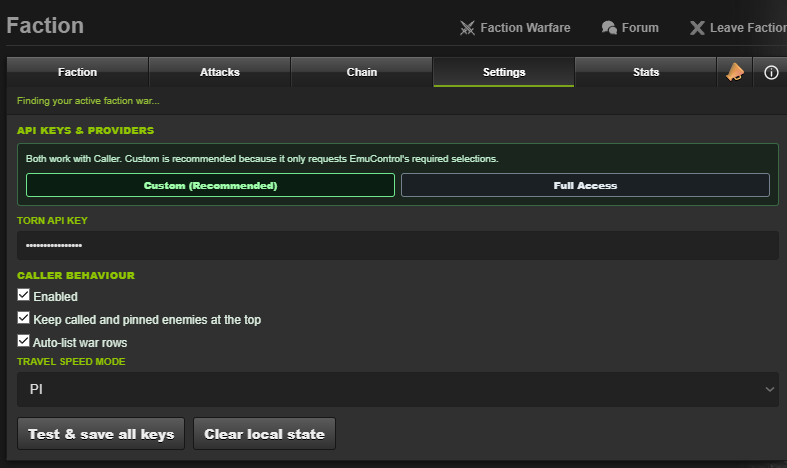
Open Companion inside Torn, select the Settings tab, and connect a Torn API key.
- Choose Custom (Recommended) to create a key limited to the selections Companion needs. Full Access also works.
- Paste the key into Torn API Key.
- Leave Enabled switched on and press Test & save all keys.
- Keep called and pinned enemies at the top enabled for the clearest war list.
Your key remains private. Never post or screenshot the actual key. A password field filled with dots is safe for this guide.
3
Know the layout
The Companion panel
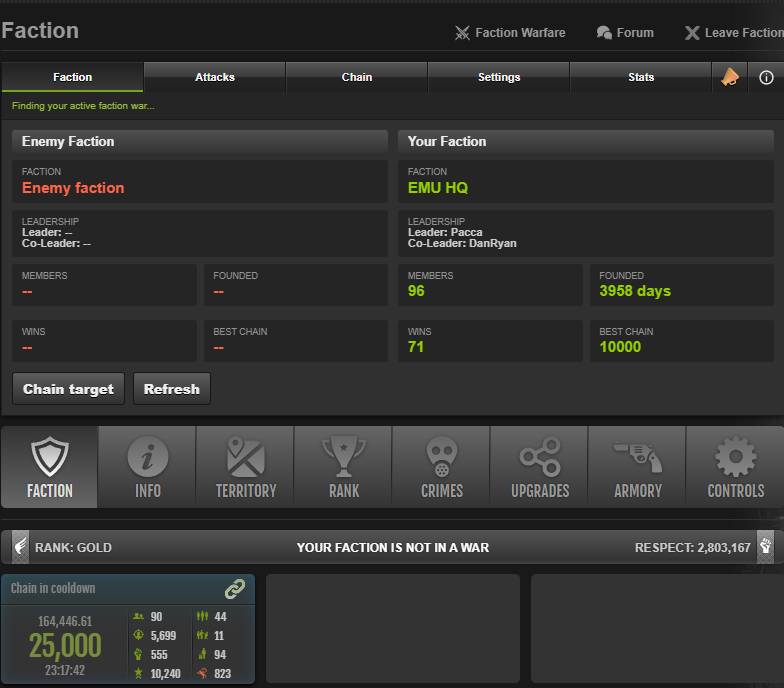
The panel follows you around Torn and keeps each tool under a dedicated tab.
Faction
Attacks
Chain
Settings
Stats
Announcements
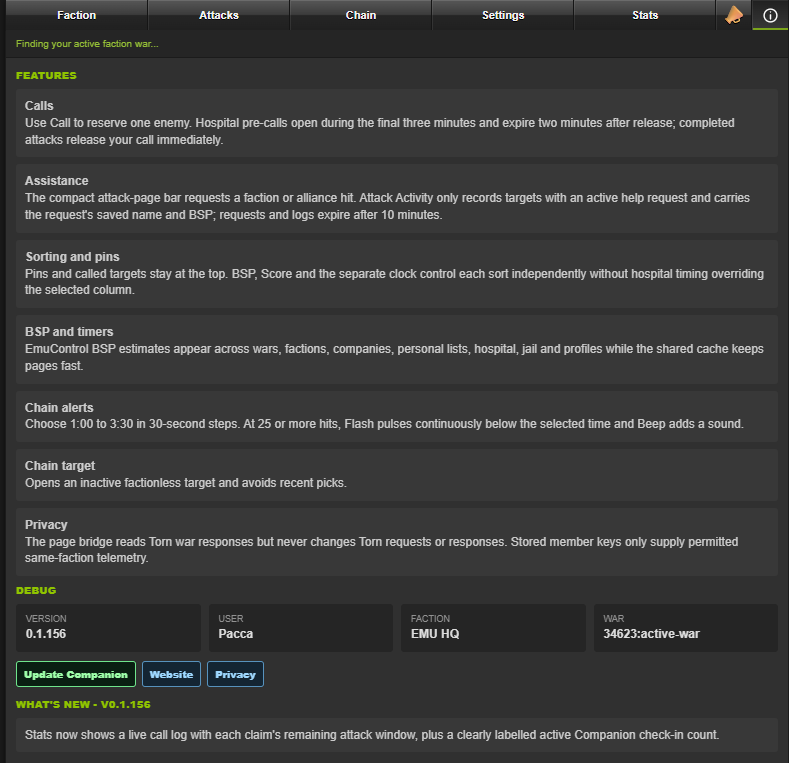
Info
Shows both factions, active-war details, quick refresh, and the random chain-target tool.
Shows live faction and alliance assistance requests plus recent assistance activity.
Controls the flash, beep, warning threshold, test alert, and random chain target.
Shows the live call log and recent Companion check-ins.
Explains features and provides the current version, updater, website, and privacy links.
4
Ranked wars
Call, pin, sort, and attack
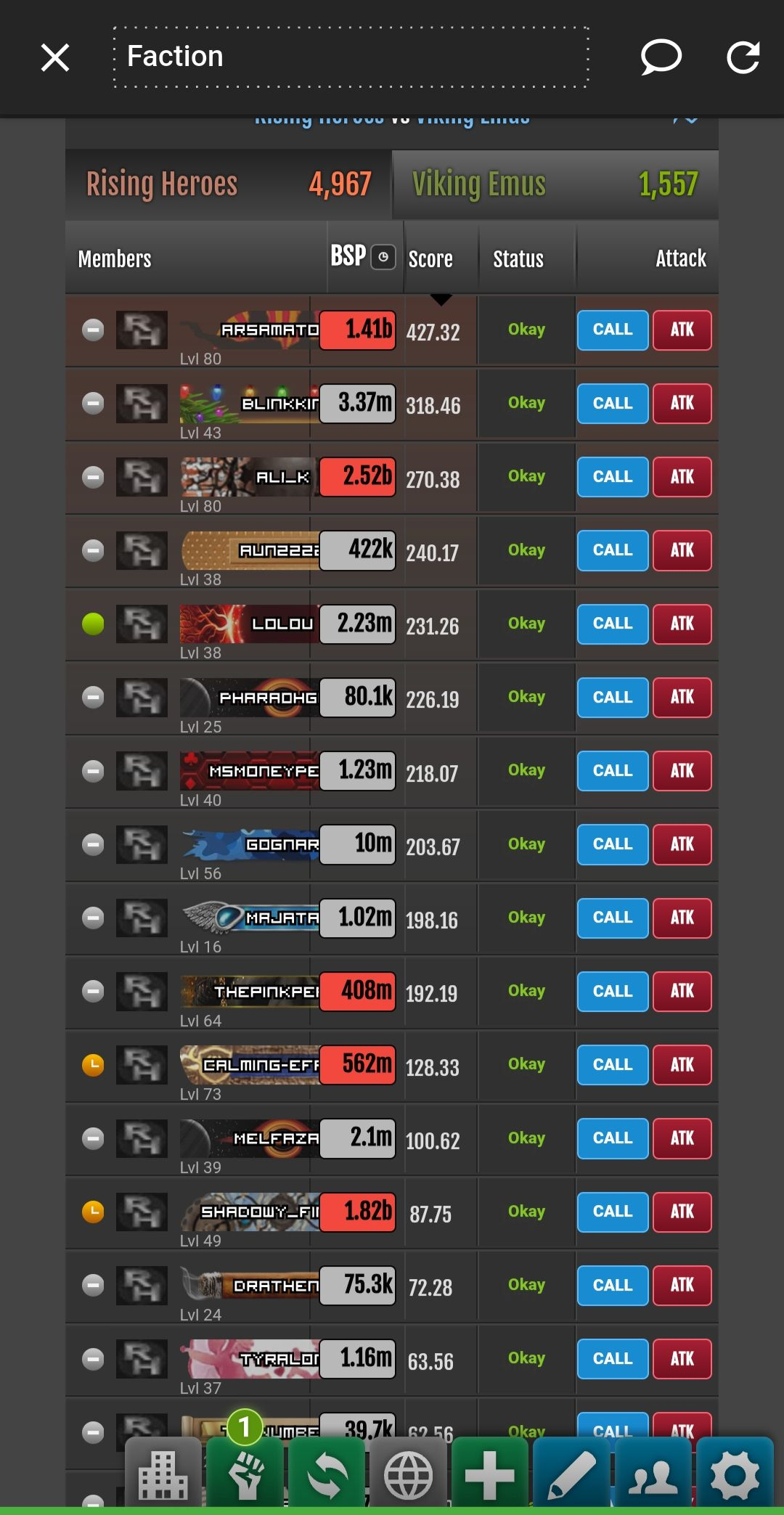
Companion enhances Torn's active-war member list with shared reservations, pins, BSP estimates, live status timers, and quicker attack controls.
☆ / ★ PinSelect the small star beside an enemy name. Pinned targets stay at the top; a filled gold star means the pin is active.
CALLReserve the enemy for yourself so other Companion users can see that the target is taken.
UNCALLRelease your own reservation when you no longer intend to attack.
CLAIMEDAnother faction member has reserved this enemy. The button remains locked to prevent duplicate calls.
WAITThe target is not currently call-ready, such as travelling or outside the hospital pre-call window.
ATKOpen Torn's attack page for that target in a new tab.
BSPSelect the BSP heading to cycle high-to-low, low-to-high, and back to Torn's normal order.
◷ ClockThe separate clock control sorts hospital timers with the shortest remaining time first.
Hospital pre-calls: CALL becomes available during the final three minutes of hospital time. The reservation expires two minutes after release, while a completed attack releases your call immediately.
Screenshot note: The active-war image below uses the previous row layout because there was no live war available when this guide was made. The current controls are described above, and the image can be replaced after the next war.
5
Full-screen option
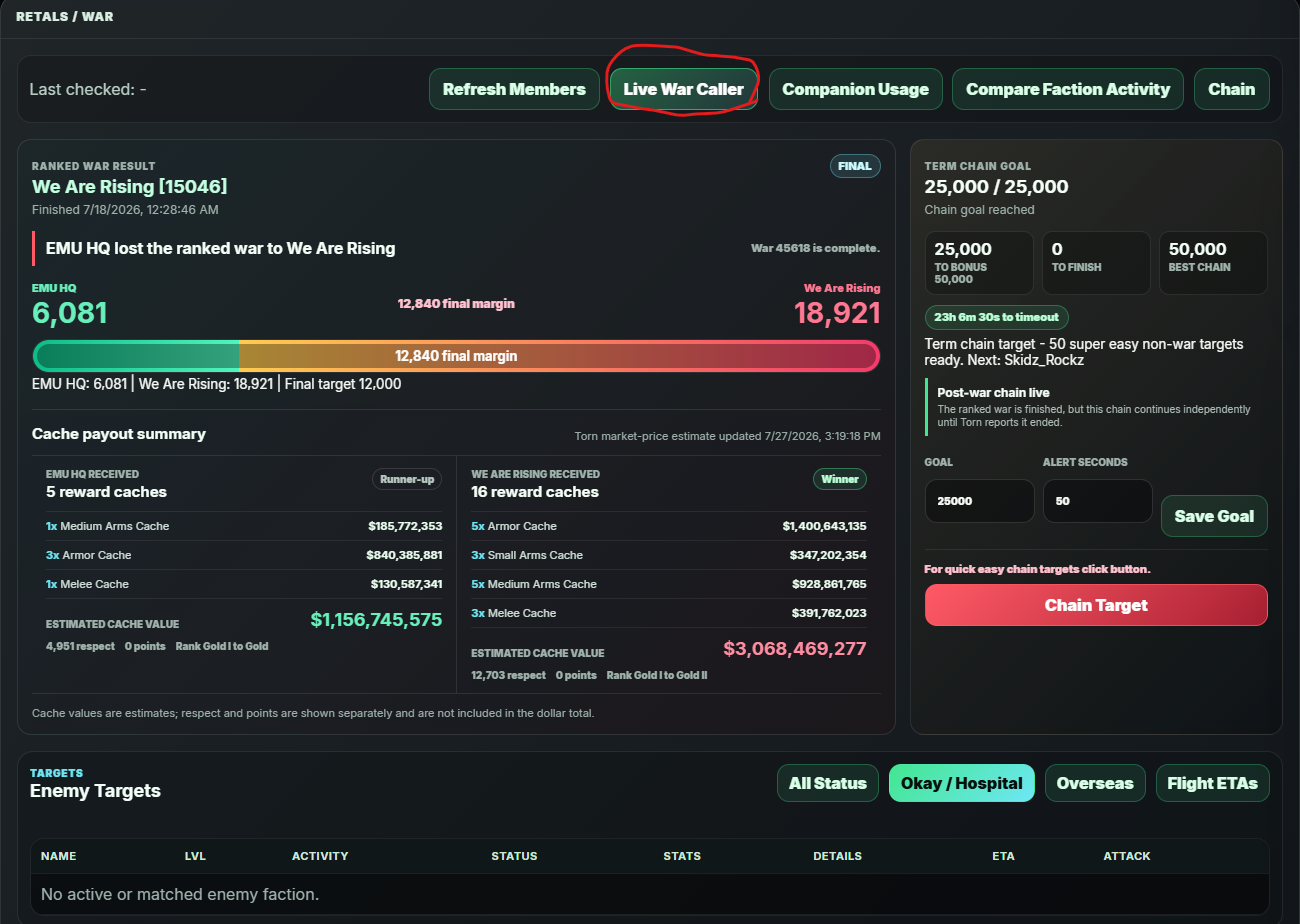
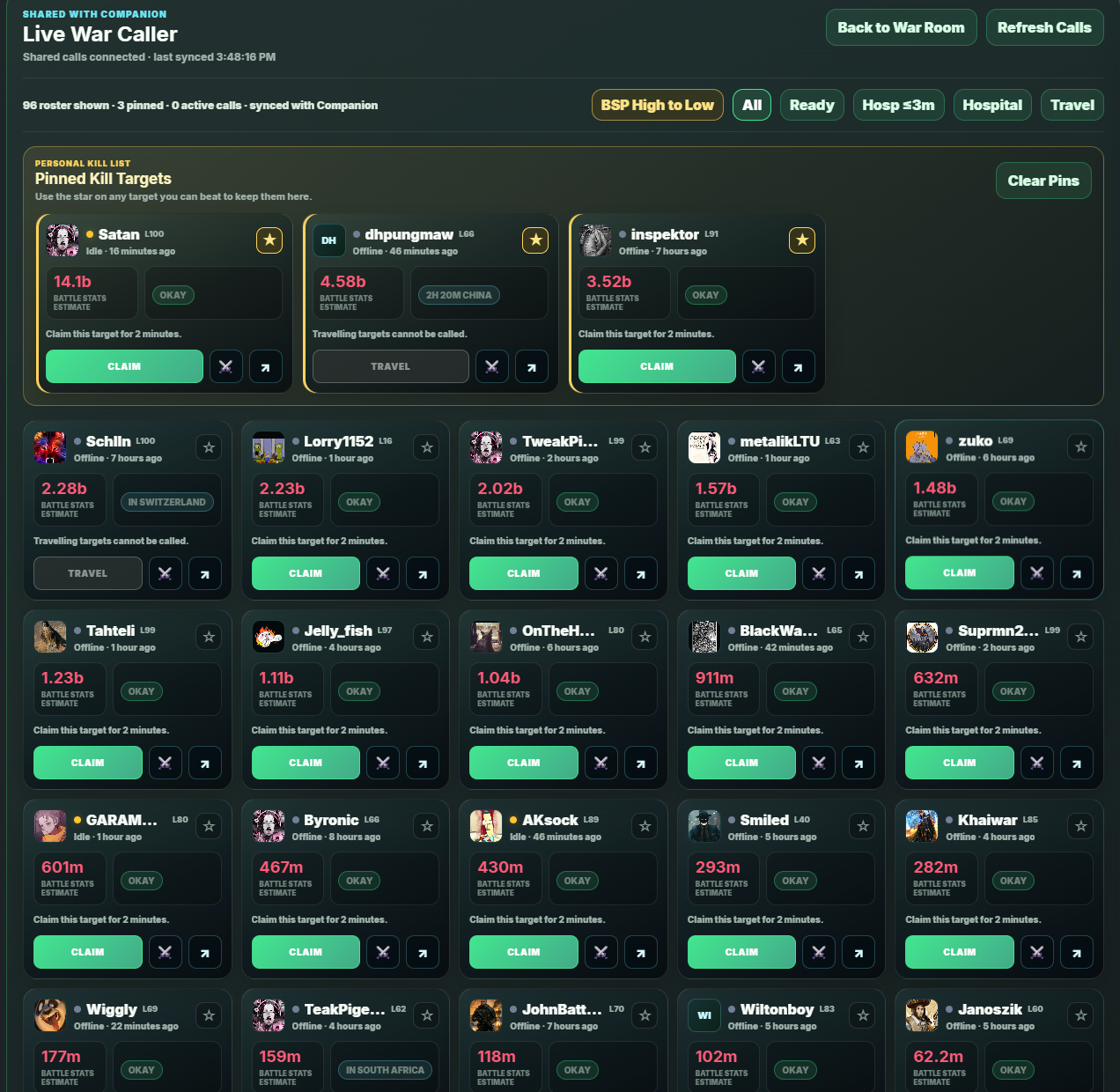
Use the website war caller
The dashboard provides a larger caller view when you want more filters and space than Torn's native war list.
- Open War Room on EmuControl.
- Select Live War Caller.
- Filter by status or sort by BSP, score, hospital time, or name.
- Use the star to pin, Claim to reserve, the sword to attack, and the profile icon to inspect the player.
6
Request backup
Faction and alliance assistance
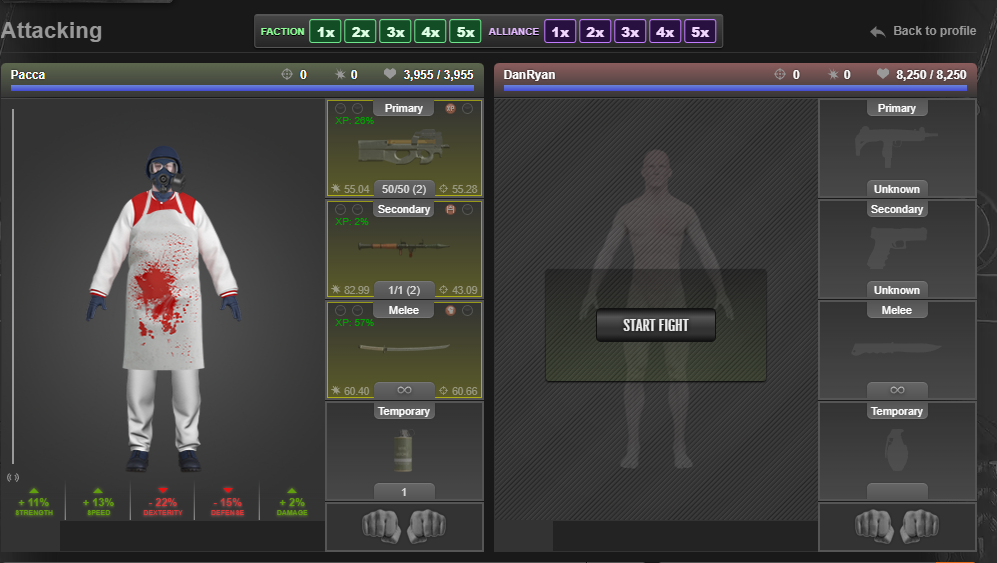
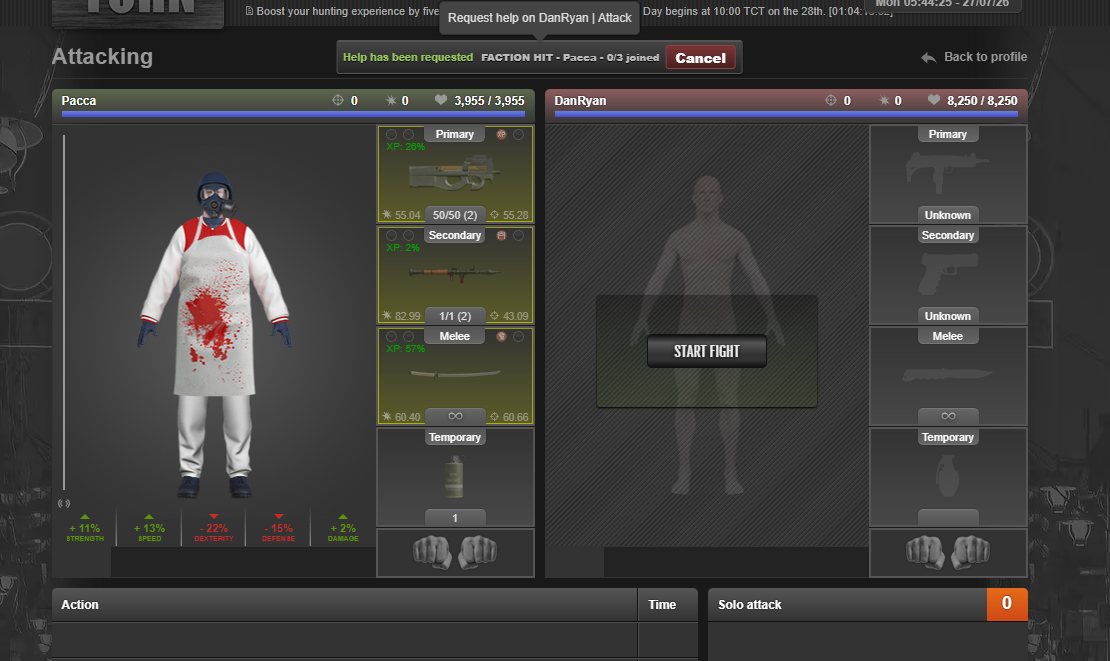
When an attack needs help, send a live request from the attack page instead of manually posting the target.
- Open the target's Torn attack page.
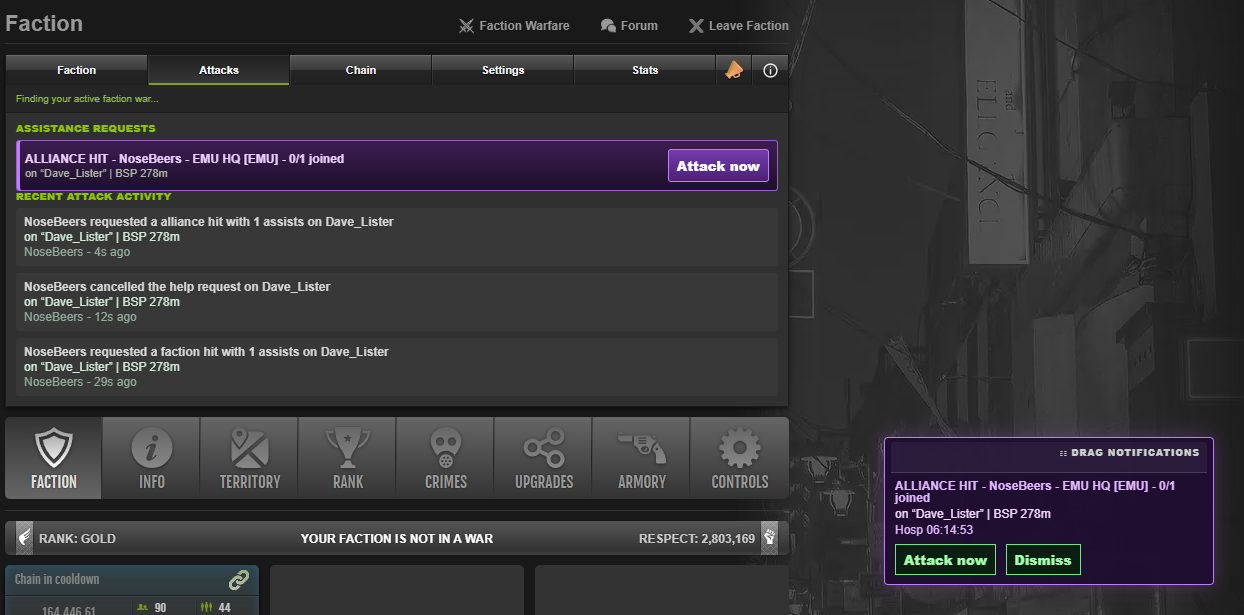
- Select Faction or Alliance, then choose how many helpers you need from 1x to 5x.
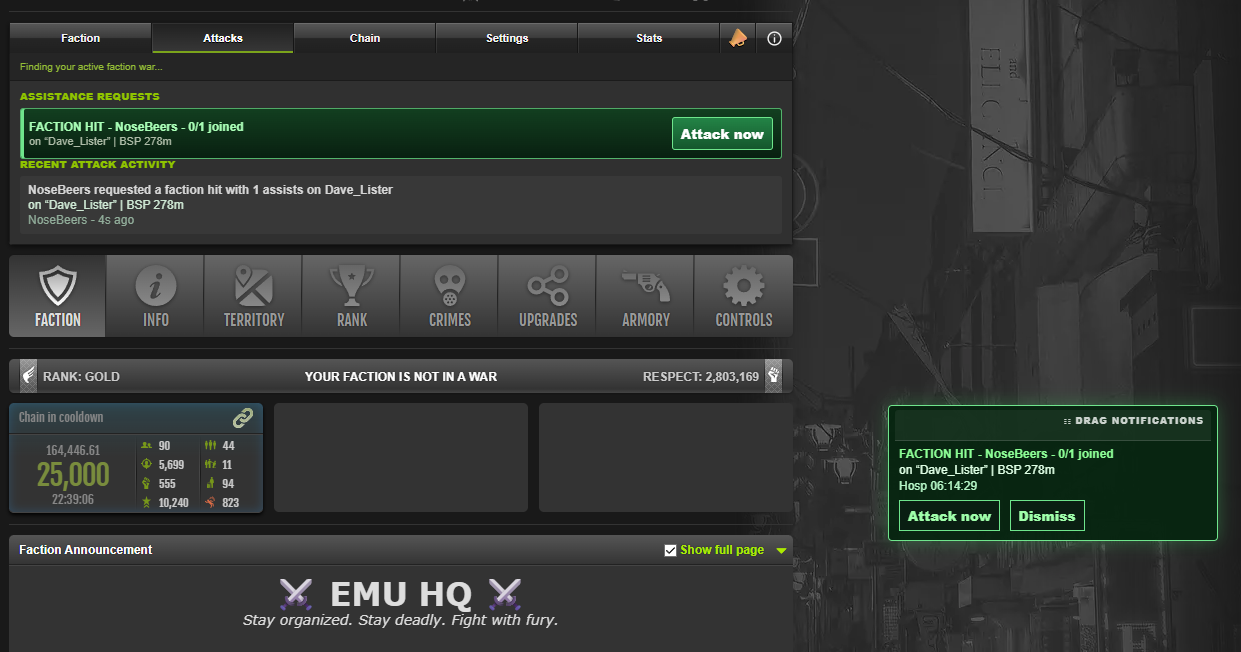
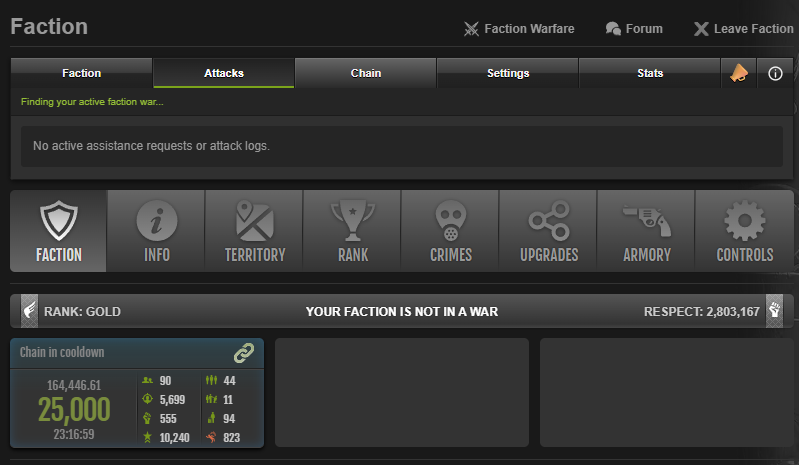
- The request bar changes to show the active request and joined count. The requester can cancel it.
- Other members receive a draggable notification with Attack now and Dismiss.
- The Attacks tab tracks the current request and recent assistance activity for ten minutes.
7
Target intelligence
Understand BSP estimates
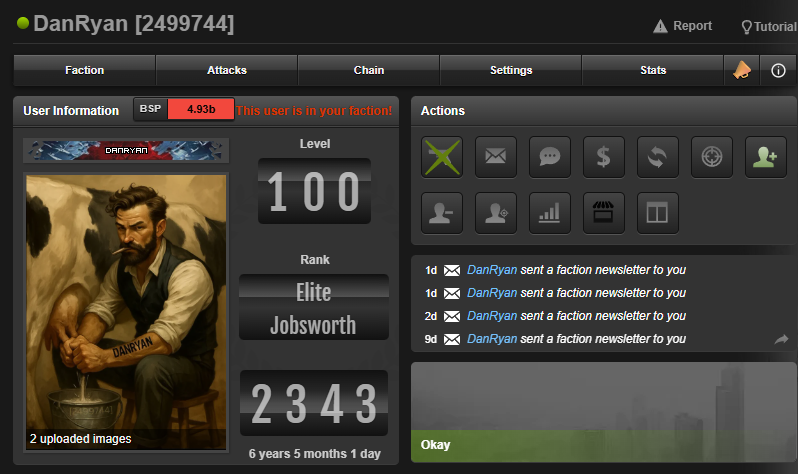
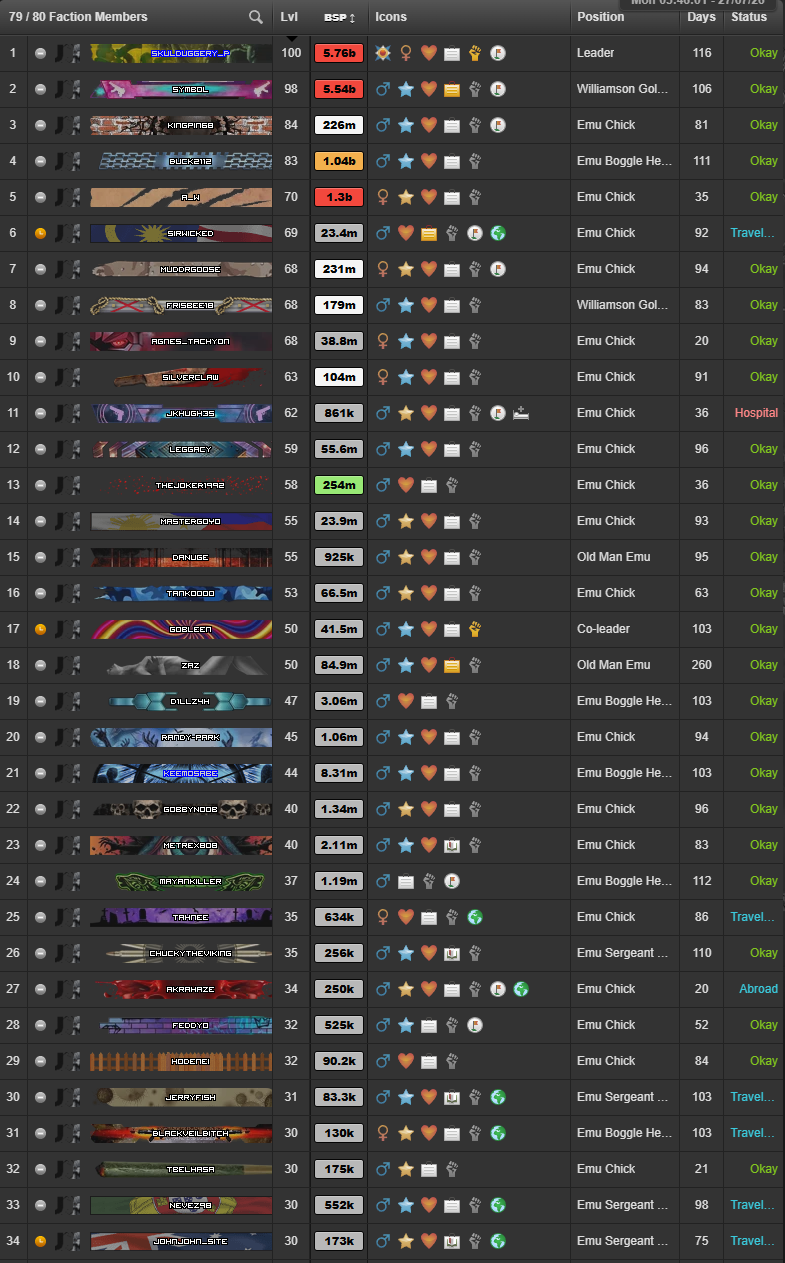
Companion adds EmuControl BSP estimates to profiles and lists throughout Torn, including factions, wars, companies, hospital, jail, personal lists, Hall of Fame, and Advanced Search.
BSP means estimated battle-stat prediction. The value and colour help compare targets quickly, but an estimate is not guaranteed to equal the player's current exact stats.
8
Protect the chain
Chain alerts and random targets
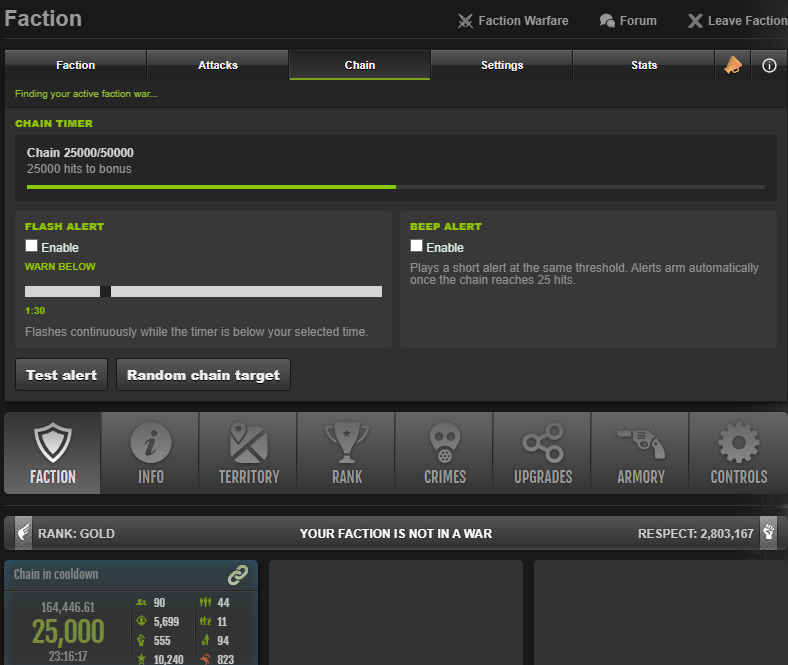
Set a warning threshold, test the alert, and pull a suitable inactive chain target without repeatedly choosing the same player.
Pulses the page continuously once a chain of at least 25 hits drops below your selected time.
Adds an audible warning to the visual flash.
Choose from 1:00 to 3:30 in 30-second steps.
Opens an inactive factionless target and avoids targets selected recently.
Background device alerts Open the EmuControl website Settings page and select Enable on this device. The server can then warn you when a chain drops under one minute or an assistance request is sent, even when Torn is closed. Tapping a chain warning opens a Quick Easy Target that is live-checked at that moment. On iPhone/iPad, use Safari Share > Add to Home Screen and turn on Open as Web App. Open the new icon, then enable alerts. A normal Home Screen bookmark cannot receive Web Push.
9
Faction communication
Send and receive announcements
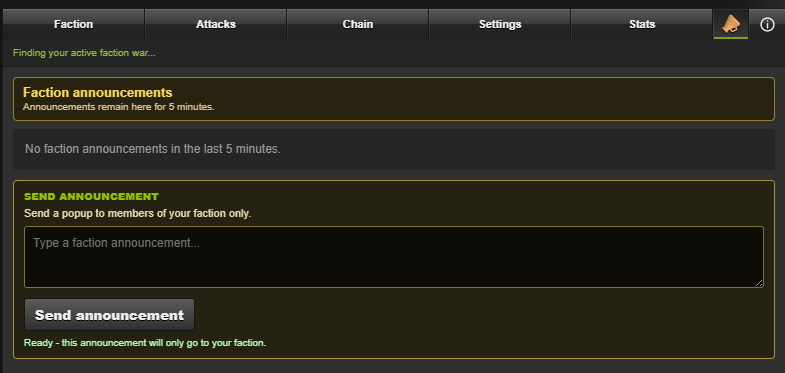
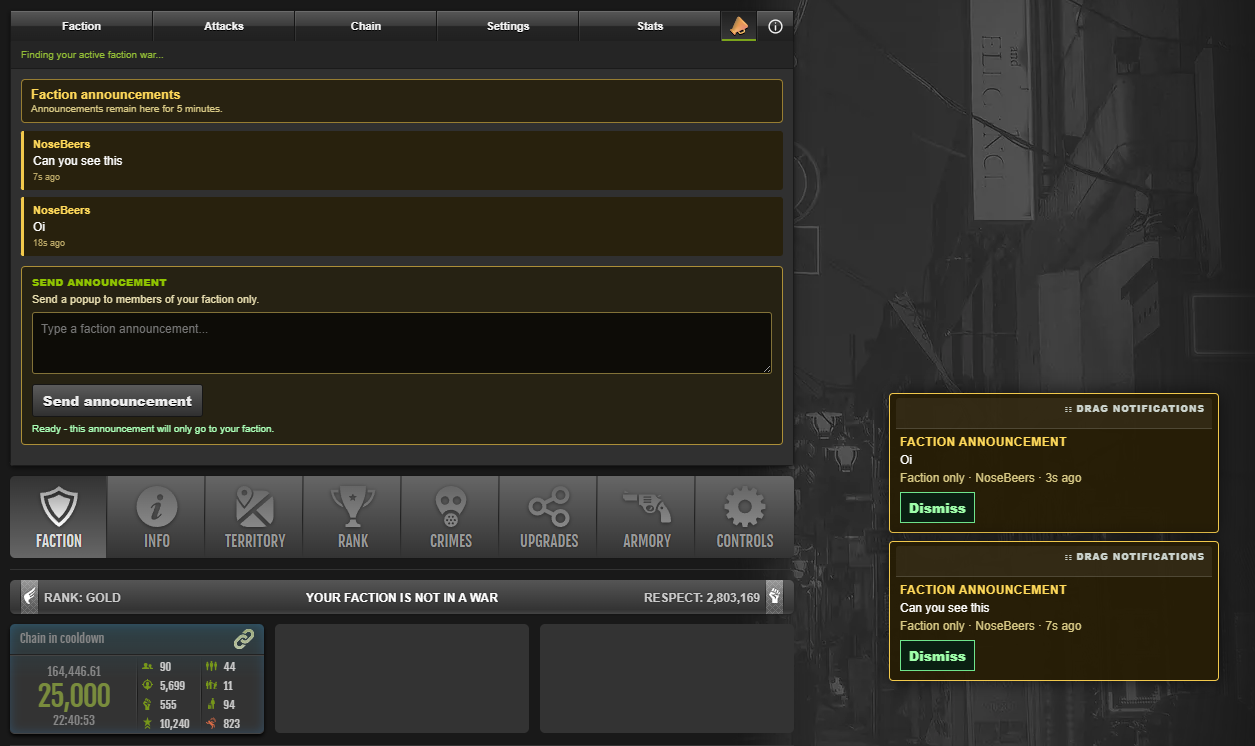
Authorised faction members can broadcast a short Companion popup to faction members without interrupting Torn chat.
- Open the megaphone tab.
- Enter a faction announcement and select Send announcement.
- Members receive a gold notification that can be dragged to another part of the screen or dismissed.
- Announcements remain listed in the tab for five minutes.
10
Activity and support
Stats, calls, and help
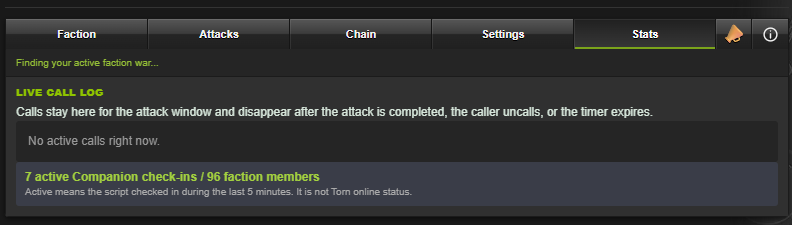
Stats shows active calls and recent Companion check-ins. Info explains every feature and links directly to the updater.
Shows who called each target, the remaining attack window, and an Uncall button for your own reservations.
Counts faction members whose Companion checked in during the last five minutes. It is not Torn online status.
Calls disappear after completion, manual uncall, or expiry. Assistance requests and their activity logs expire after ten minutes.
?
Quick fixes
Troubleshooting
Most problems can be corrected without reinstalling or clearing all local data.
Companion is not appearing in Torn
Confirm the userscript is enabled, refresh Torn, and use Update Companion from the Info tab. On desktop, also confirm your userscript manager is enabled for torn.com.
It stays on Connecting or asks for a key
Open Settings, paste a valid Custom or Full Access Torn key, and use Test & save all keys. If the test fails, create a new Custom key from the recommended link.
It says Finding your active faction war
This is normal when your faction is not currently in an active ranked war. The panel, assistance tools, BSP, chain alerts, and announcements can still operate on their relevant pages.
Some BSP values are blank
Estimates load progressively and may not exist for every player. Refresh after a moment and confirm the Settings key test succeeds.
Calls or pins are not staying at the top
In Settings, enable Keep called and pinned enemies at the top. Pins are stored locally on the device where you selected them.
I need a clean local reset
Use Clear local state in Settings only after the simpler checks above. It clears local pins and cached Companion display data so the script can rebuild them.